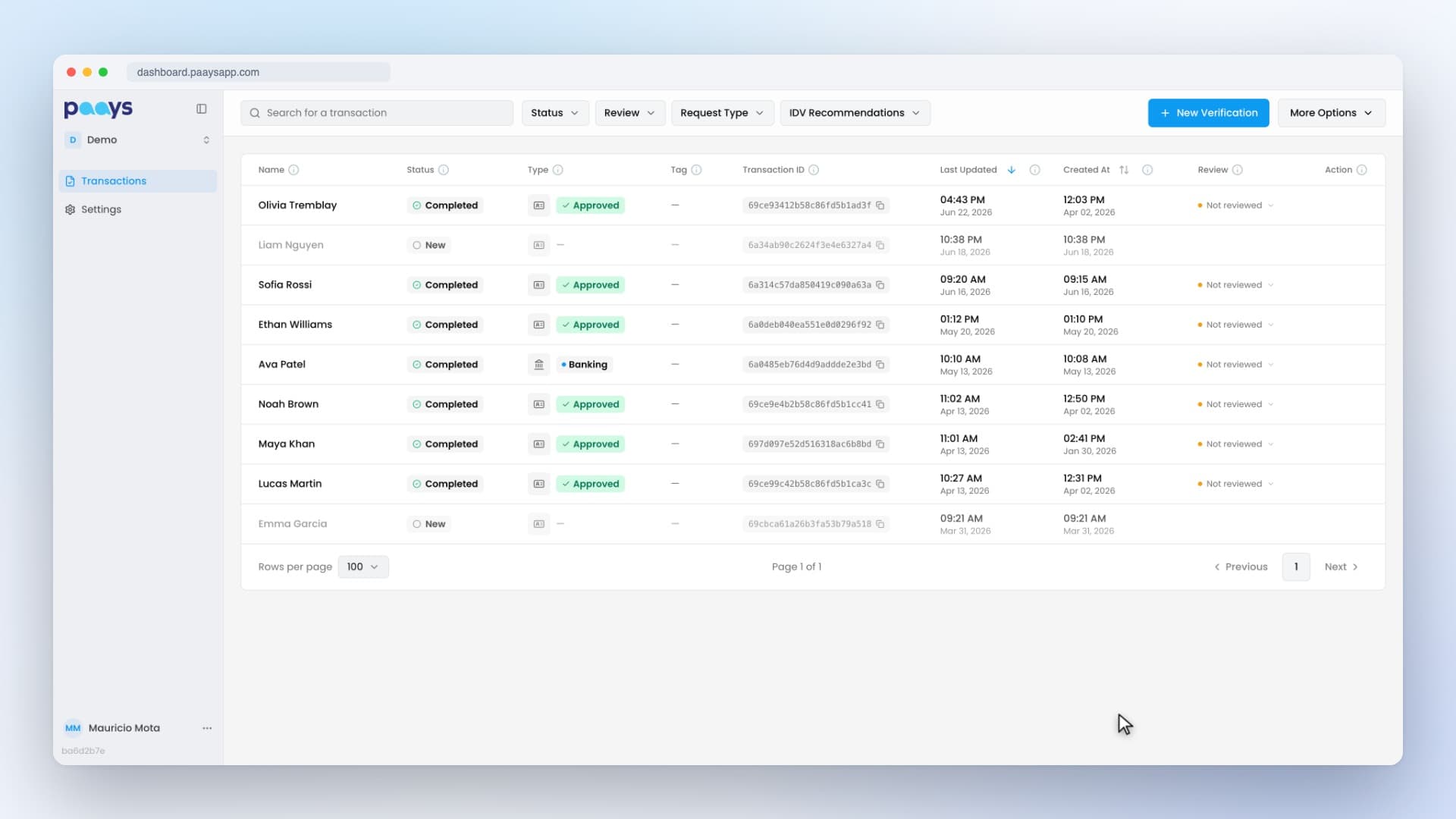
See how your team uses Paays
Activity puts your team’s use of Paays on one page: how many verifications each person and each team sent, and who hasn’t sent any yet.
Activity is live in your dashboard. Find it in the menu on the left, under Transactions. There’s nothing to set up.
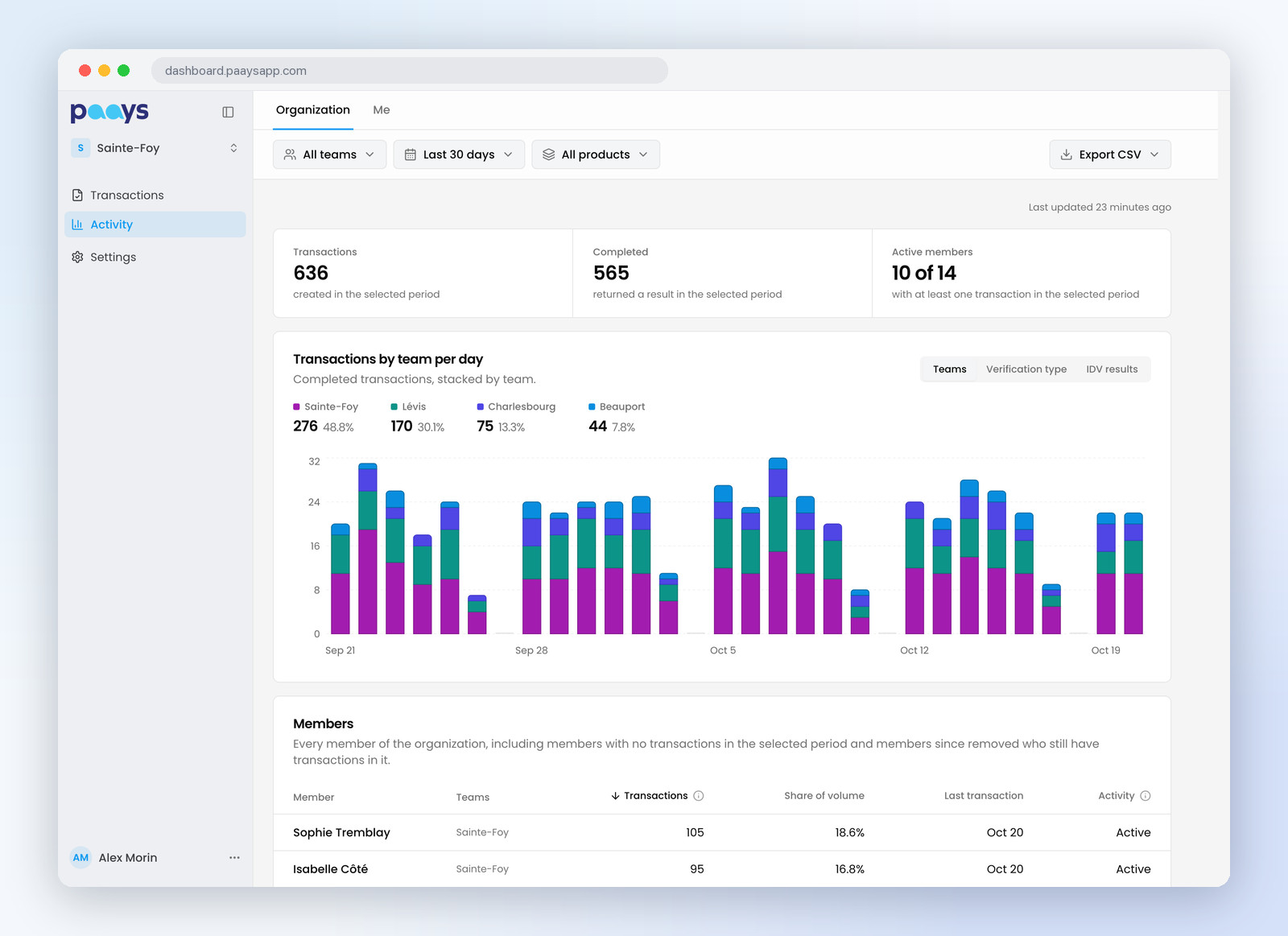
What the page shows
The top of the page gives three numbers for the period you pick:
- Transactions: the verifications your team sent.
- Completed: the ones that came back with a result.
- Active members: how many people sent at least one, such as 10 of 14.
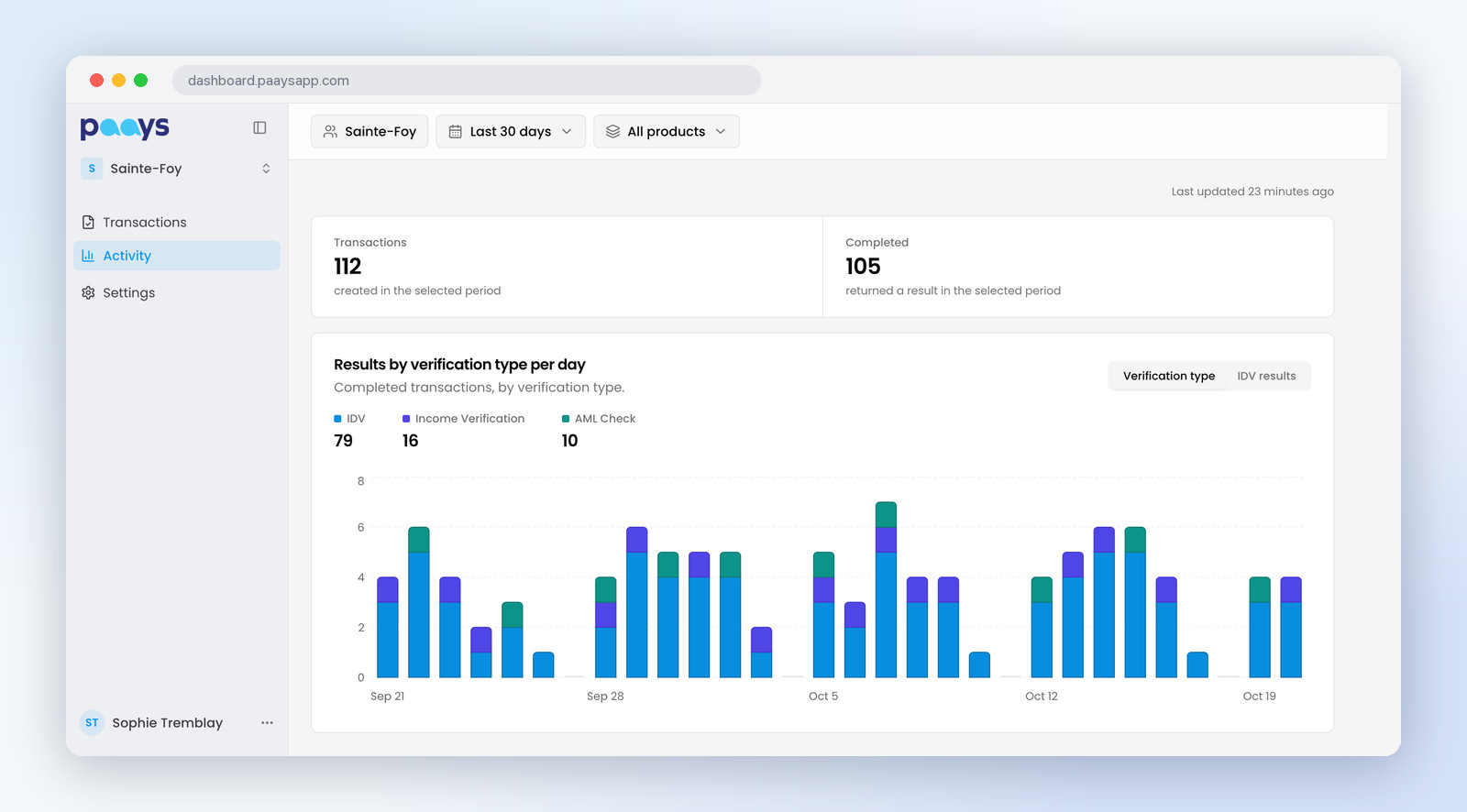
A chart below counts completed verifications day by day. Switch it between Teams, Verification type and IDV results. The IDV results view splits your ID verifications into approved and rejected, with the approval rate above.
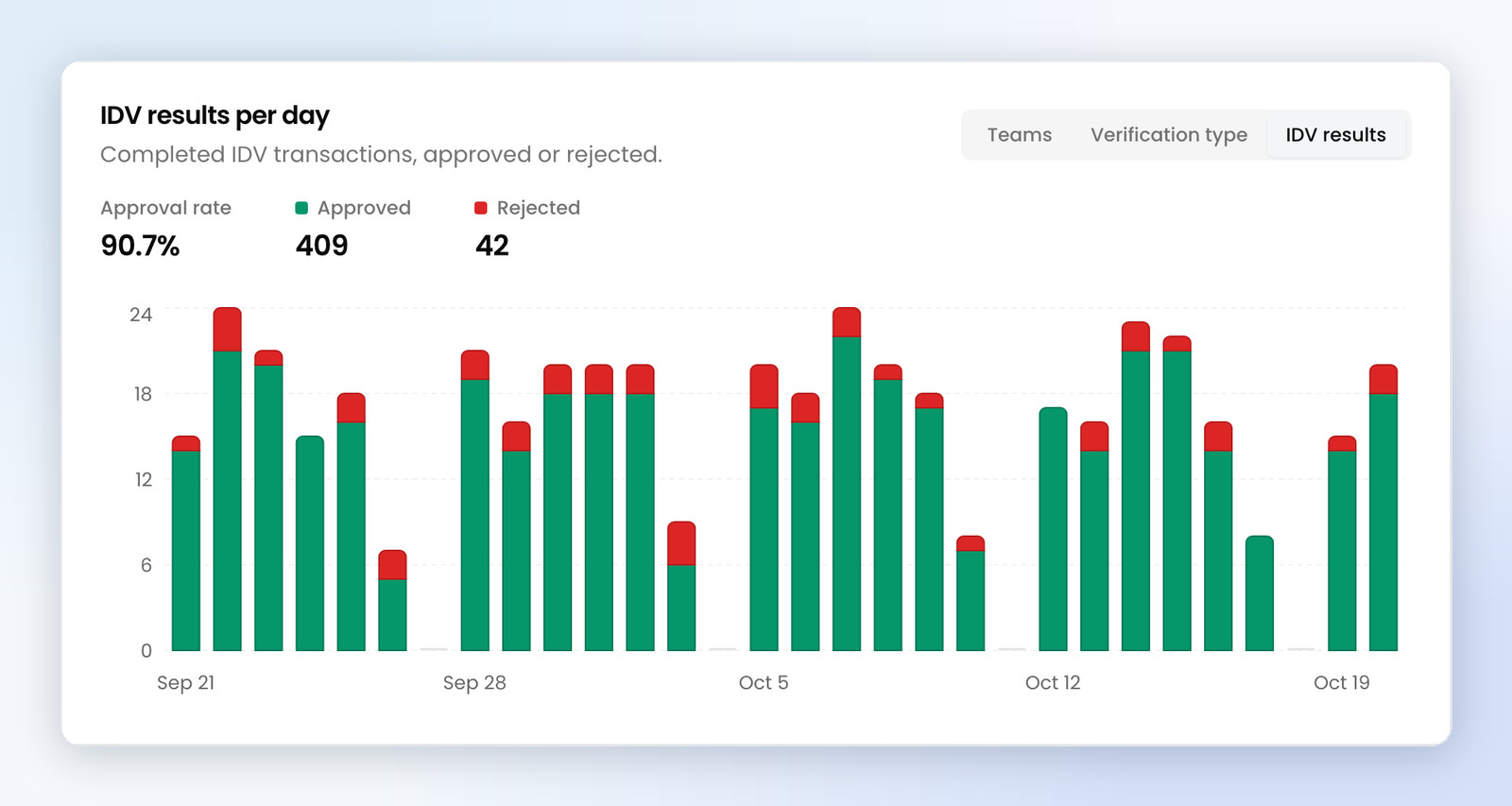
Three filters set what you see: the period (the last 24 hours, 7, 30 or 90 days), the team, and the product (IDV, Income Verification or AML Check).
Admins and owners see the whole organization
Admins and organization owners land on the Organization tab.
Members lists everyone in your organization: the verifications each person completed, their share of the total, the date of their last transaction, and whether they were active in the period. People with no verifications in the period stay on the list, marked No activity.
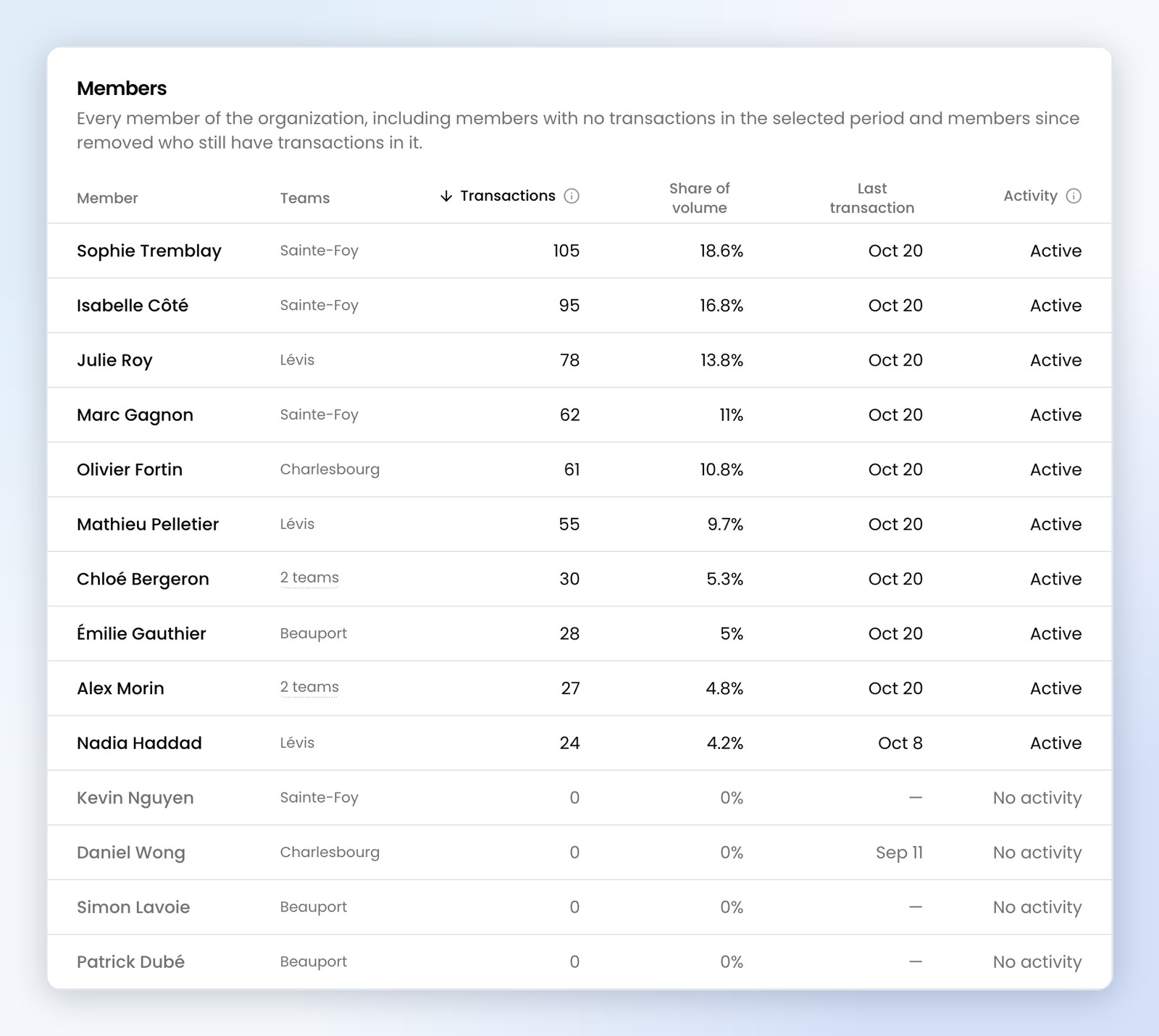
Teams gives each team’s total and how many of its members are active. Pick a team in the filter, or click its name, and the whole page narrows to that team.
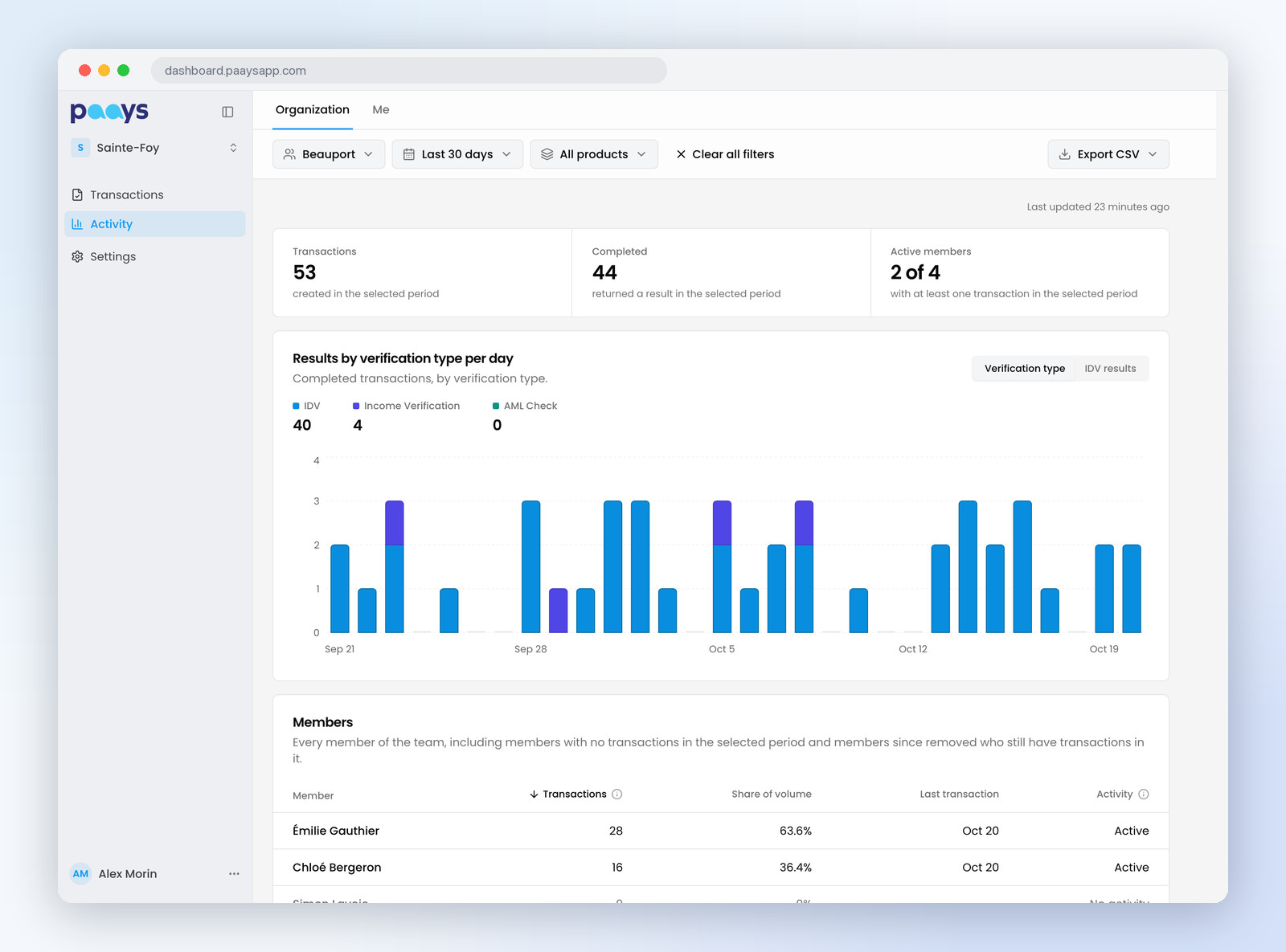
Click a member’s name to open their numbers, the same ones they see when they open Activity. To work with the lists elsewhere, Export CSV downloads Members or Teams as a file you can open in Excel.
Your own numbers sit one tab over, under Me.
Agents see their own numbers
Agents land on their own numbers: the verifications they sent, the ones that came back with a result, and their chart by verification type or IDV result. They don’t see anyone else’s. An agent who works in more than one team can pick a team in the filter.
Ways to use it
- Monday morning: set the period to the last 7 days and see which teams sent the most.
- A new hire’s second week: find them in Members and check the date of their last transaction.
- A quieter team: the Teams list shows how many of its members are active, so you know where to follow up.
- Month-end: export the Members list for your own reporting.
Good to know
- Activity covers up to the last 90 days.
- A transaction is one verification type for one customer: an ID verification and an income verification for the same customer count as two.
- The chart and the lists count completed verifications. Someone counts as active once they send one in the period.
- The page shows when its numbers were last updated.
Questions or feedback? Send us a message from the chat in your dashboard, or reach out to your Paays contact.